
Required activities, that must be completed prior to submitting the visit, can be found in the red circle on the right-hand side of the screen. Optional activities will have a grey circle shown below the last required item. The number in the respective circles represents how many activities, both required and optional, that must be completed in order to submit the visit.
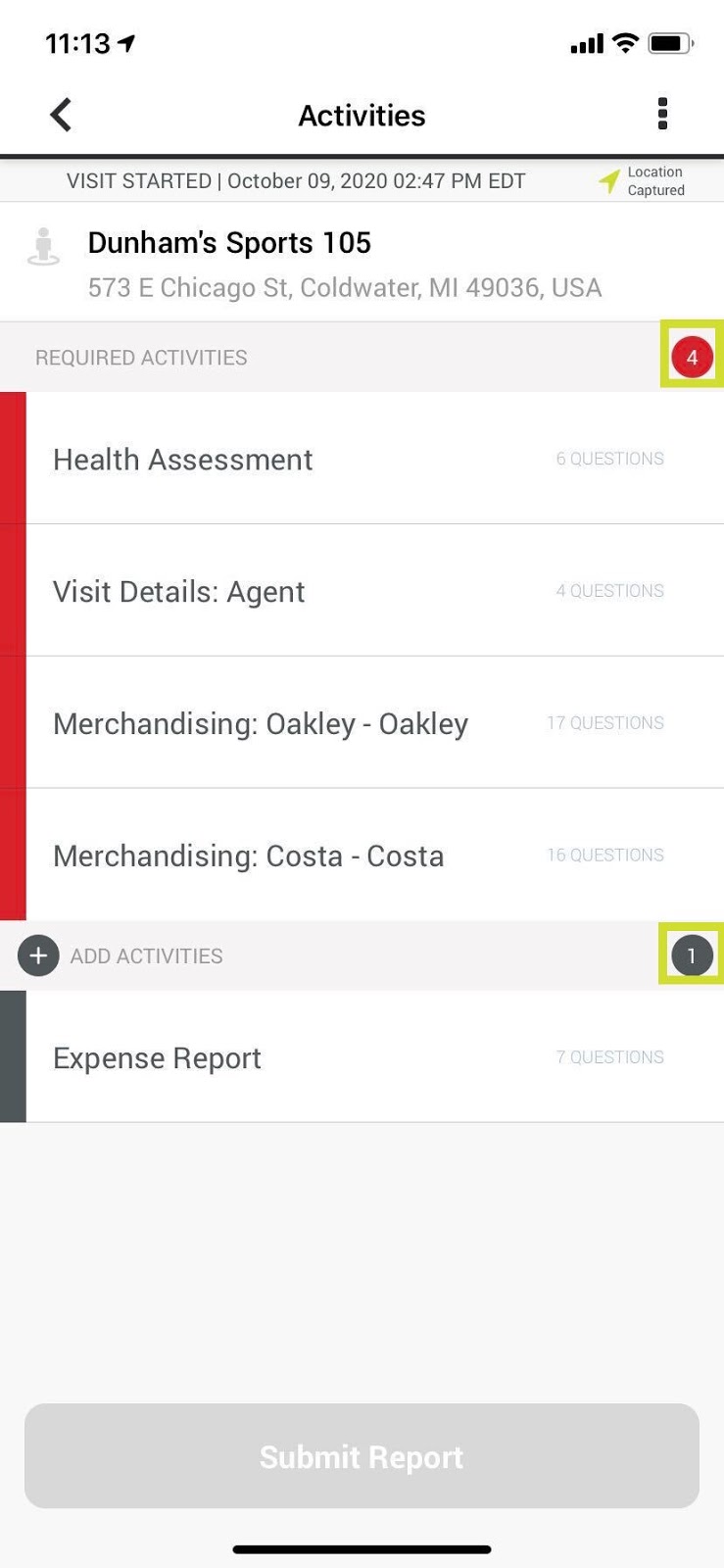
Select an activity by tapping the title to begin (you will notice how many questions are in each activity via the text to the right of the title).
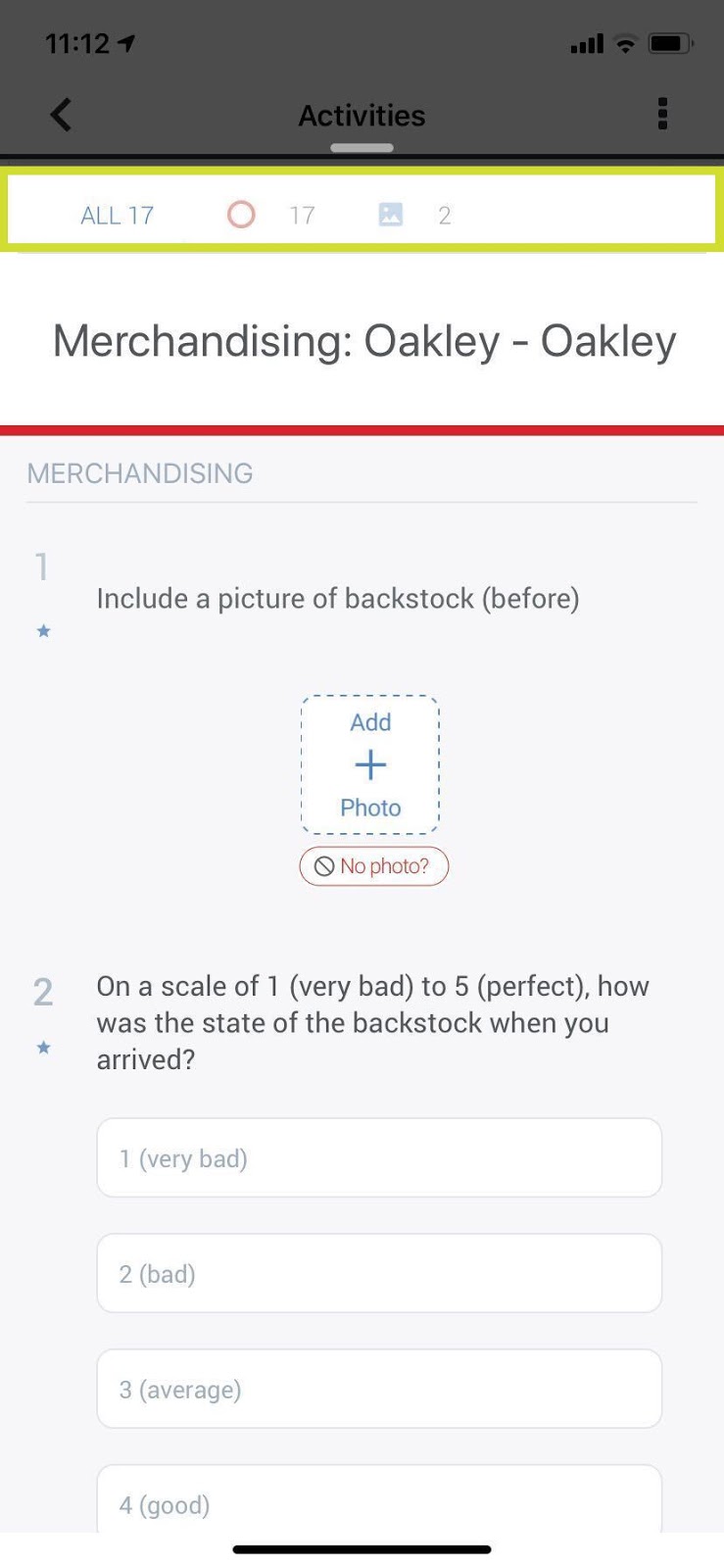
The survey will appear with 2 or 3 tabs at the top, under the Activities bar:
The first tab (All) will show all of the questions that require an answer. The questions will be grouped together with topics such as: “merchandising”, “time in-store”, or “summary”.
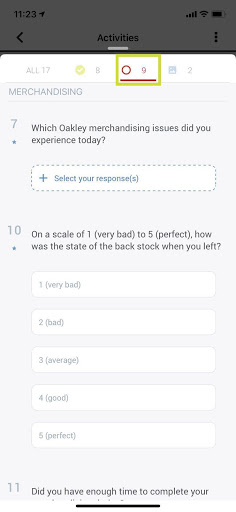
The second tab (red circle) will show all incomplete questions for the current activity. Note: As you answer questions, the number next to the red circle will decrease. Comparing the two images, there are originally 17 unanswered questions and now there are only 9
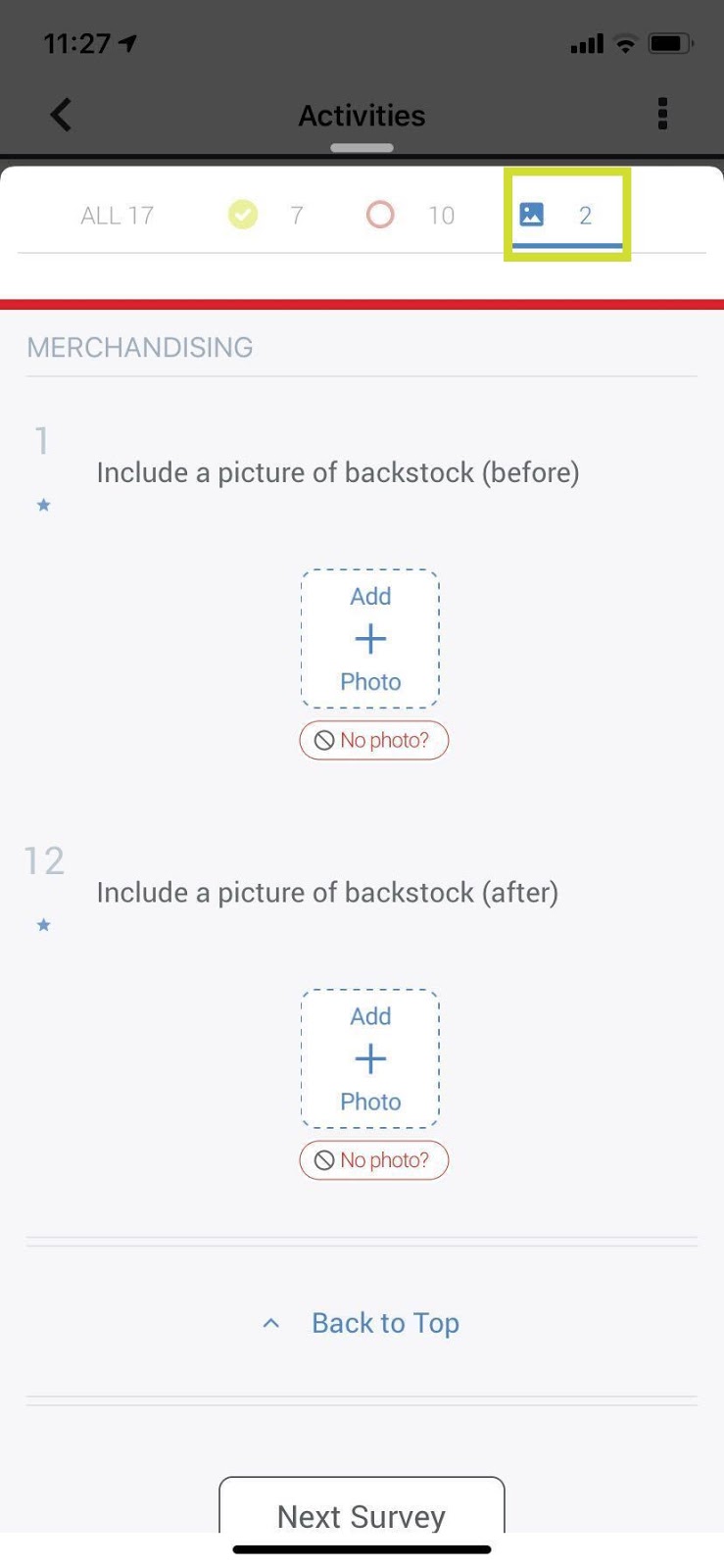
The third tab (photo icon) will only show the photo questions for the respective activity. You are able to upload a maximum of 5 photos. Note: If you forget to take a photo, you are able to still answer the question by clicking “No photo?”.
As questions are answered, they will appear in the top tab with a green checkmark. Note: You will be able to review all of the answers prior to completing the activity.
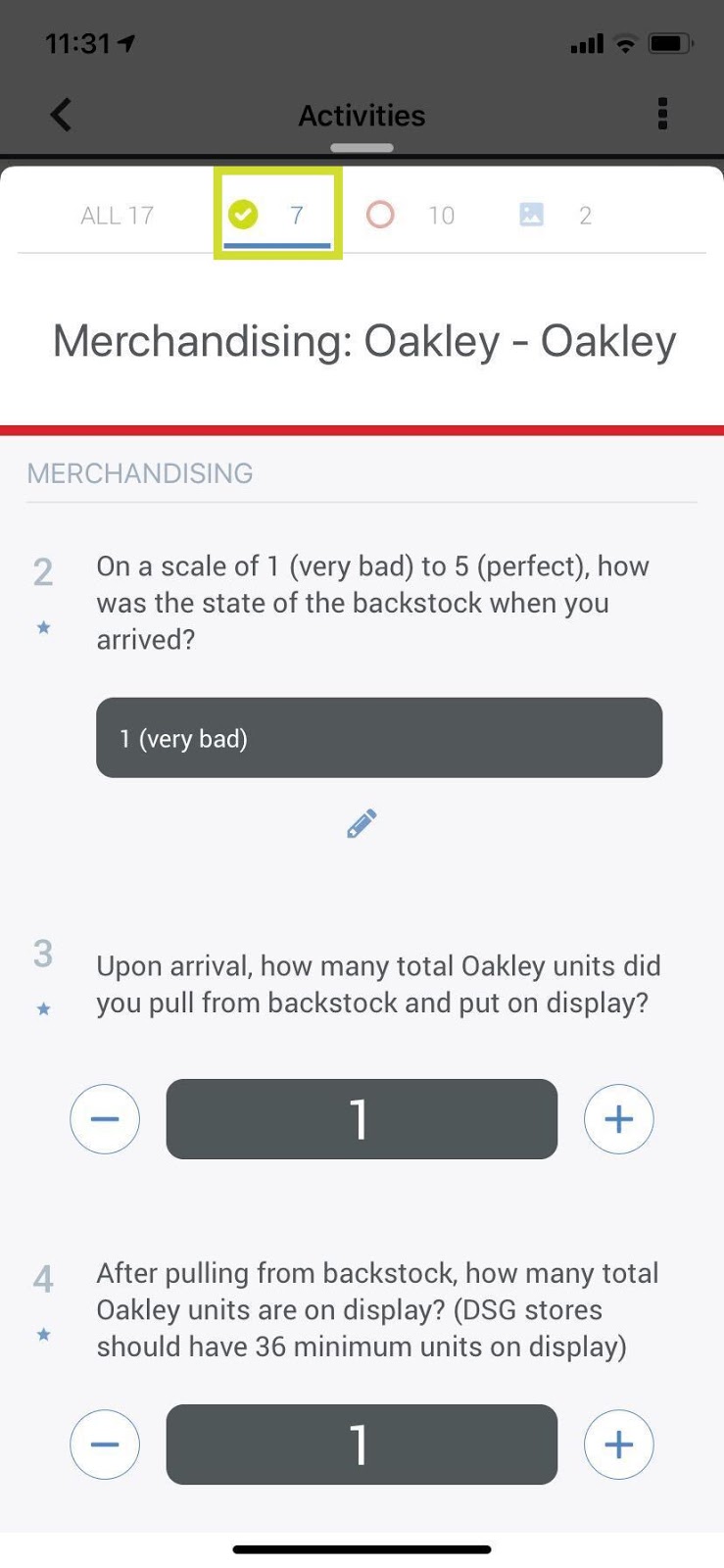
To exit out of the survey and view all activities answers, simply click on Activities or swipe down at the top of the survey. To proceed to the next activity, scroll to the bottom of the questions, and select Next Survey.
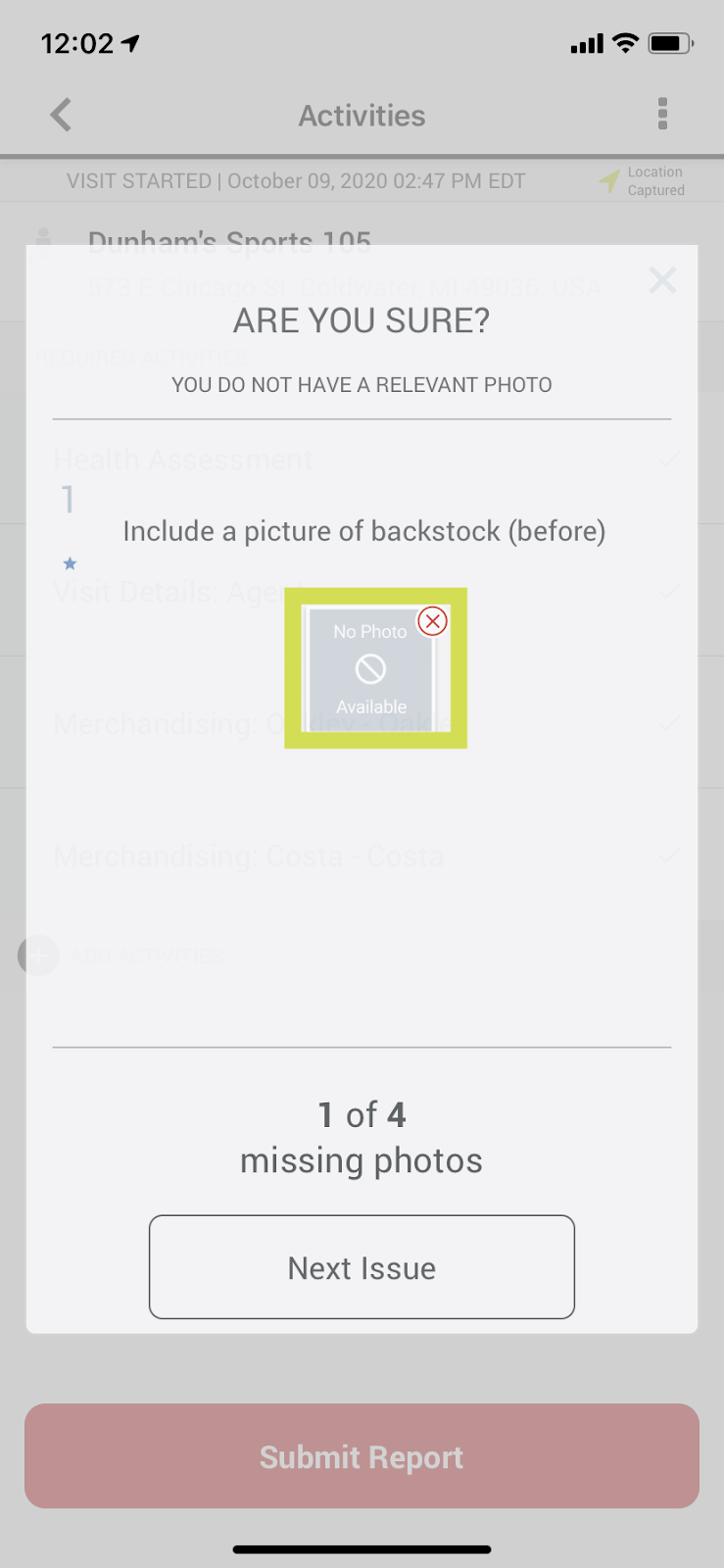
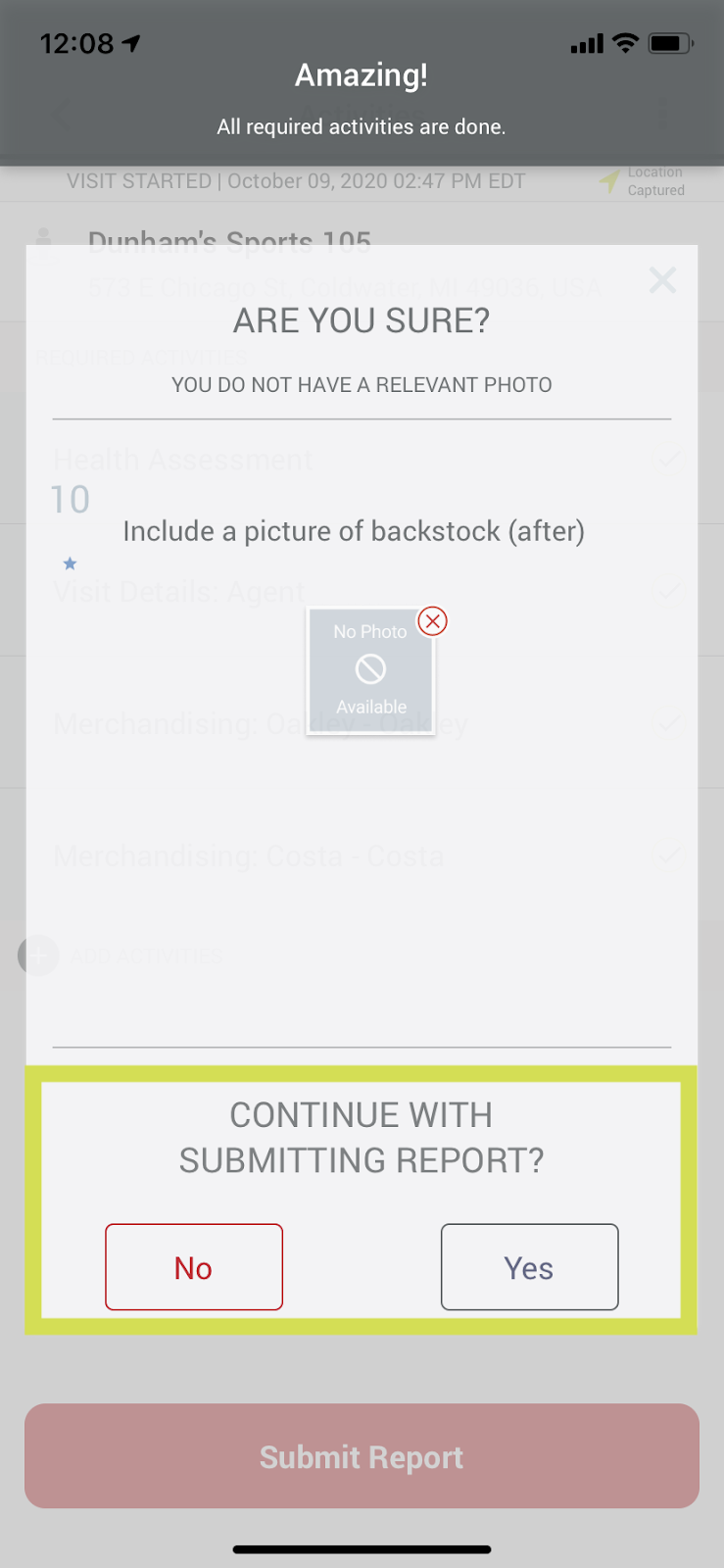
Once all activities are completed, the submit button will “activate” (turning from grey to red). Any photo questions that had “no photo?” will appear, informing you that the question does not have a proper answer.
You will have three options:
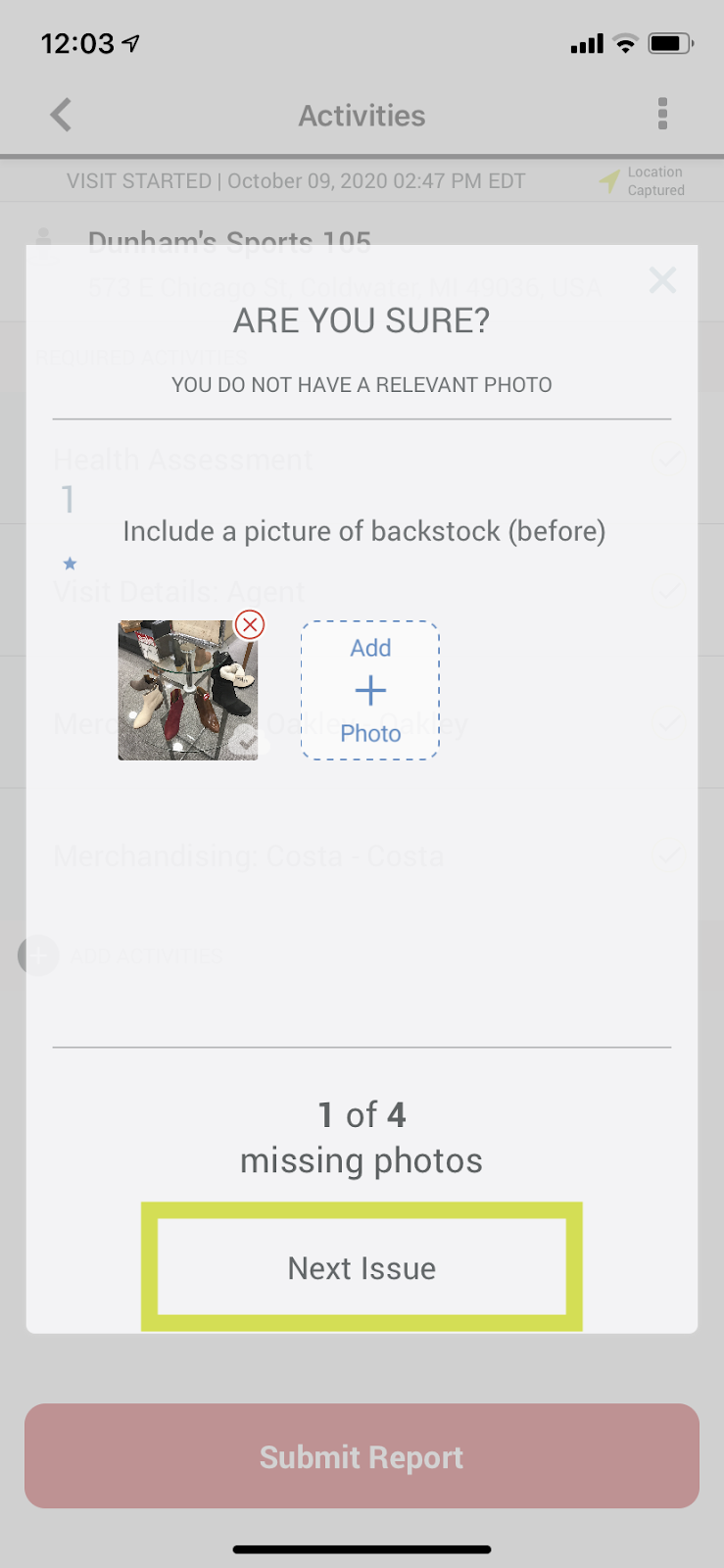
- Edit the photo question to provide the correct image by clicking the red X to delete the no photo. Tap “add photo” will enable you to either take a picture or search through your gallery to add the photo
- Tap “Yes or No” to continue with submitting the report?
- Tap “Next Issue” if there is more than one question with no photo
Comments
0 comments
Article is closed for comments.